Bringing Snowflake Client Redirect for Business Continuity
Introduction
When running production workloads on Snowflake across multiple regions, a regional outage can disrupt client connections. Traditionally, this meant updating connection strings in every application - a painful, slow and error-prone process which can lead to prolonged service disruption.
Snowflake Client Redirect solves this by introducing a connection object that acts as a fixed endpoint. Rather than referencing a specific account URL, clients connect through a connection URL that Snowflake resolves to the account currently serving as primary.
The important element is that this URL does not reference a specific account or region. An account administrator controls where it resolves by promoting a connection to primary. During a failover, clients keep using the same URL, eliminating the need for application changes.
The connection URL follows this format:
<organization_name>-<connection_name>.snowflakecomputing.com
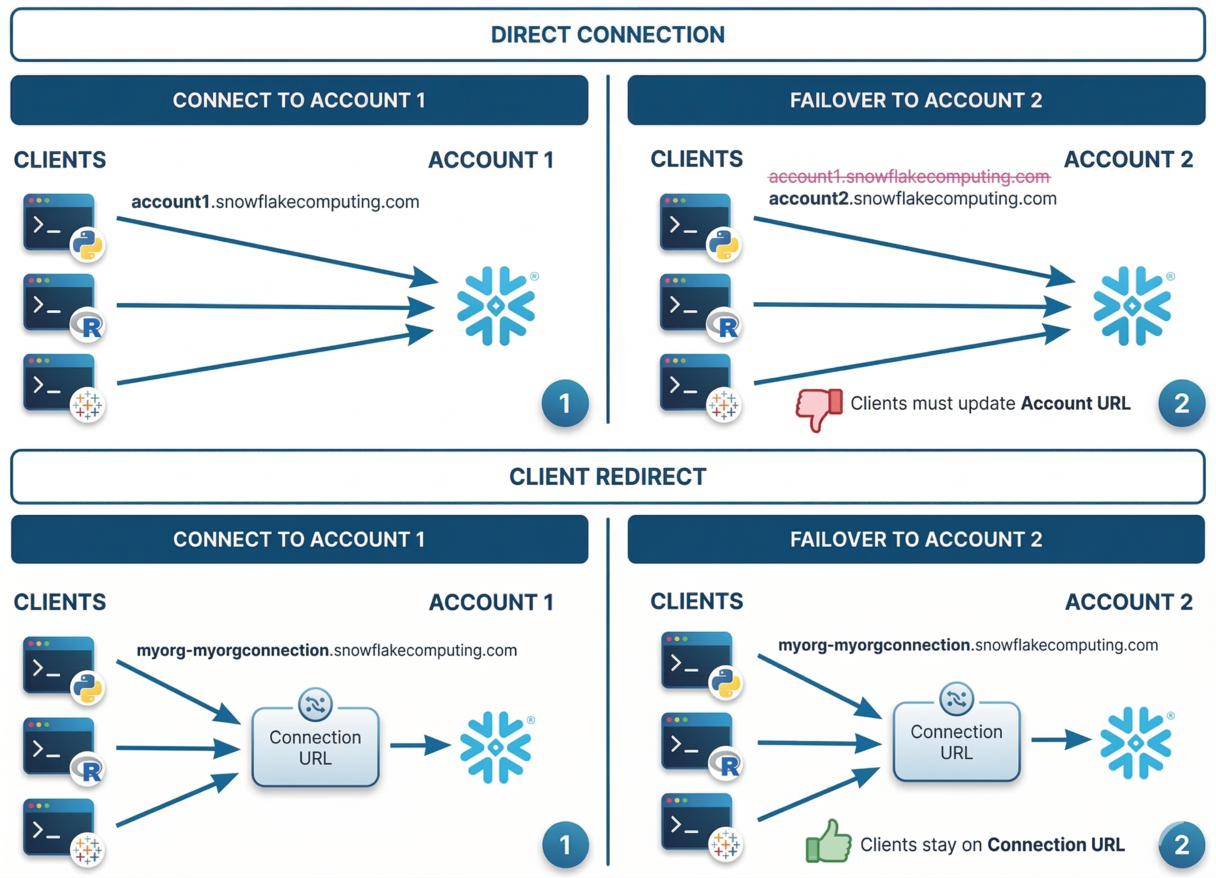
This feature requires Business Critical Edition and replication enabled across accounts.
Public Connections
For accounts accessed over the public internet, the setup is straightforward. Snowflake handles the URL resolution, and there is no DNS configuration needed.
Step 1: Create a primary connection on the source account
-- Run below on source account (myorg.account1)
USE ROLE ACCOUNTADMIN;

-- Create the connection object
CREATE CONNECTION myorgconnection;

-- Verify which accounts are enabled for replication
SHOW REPLICATION ACCOUNTS;

-- Allow failover to specific accounts (must be in different regions)
ALTER CONNECTION myorgconnection
  ENABLE FAILOVER TO ACCOUNTS myorg.account2;

-- Verify the connection was created
SHOW CONNECTIONS;
The SHOW CONNECTIONS output includes the connection_url column - this is the fixed URL for your clients to use.
Step 2: Create a secondary connection on each target account
On each target account that was enabled for failover, create a replica of the primary connection. The name must match the primary connection name.
-- Run below on the target account (myorg.account2)
CREATE CONNECTION myorgconnection
  AS REPLICA OF myorg.account1.myorgconnection;

-- Verify the connection was created
SHOW CONNECTIONS;
Step 3: Update client configurations
Point your Snowflake clients at the connection URL instead of the account URL. Below are a couple of common examples:
JDBC
jdbc:snowflake://myorg-myorgconnection.snowflakecomputing.com/?user=jsmith&password=mySecurePassword
Python
connection_parameters = {
    "account": "myorg-myorgconnection",
    "user": "jsmith",
    "password": "mySecurePassword"
}
Private Connections
When your Snowflake accounts use private connectivity (eg: Azure Private Link), Client Redirect requires additional DNS configuration. Snowflake cannot resolve the connection URL over private networks and your DNS configuration must be updated.
The connection URL adds a privatelink segment and follows this format:
<organization_name>-<connection_name>.privatelink.snowflakecomputing.com
You also need an OCSP URL for certificate validation:
ocsp.<organization_name>-<connection_name>.privatelink.snowflakecomputing.com
Step 1: Retrieve the connection details
After creating the primary and secondary connections (same SQL as the public setup), call SYSTEM$GET_PRIVATELINK_CONFIG to get the connection URLs formatted for private connectivity.
-- Verify the connection was created
SHOW CONNECTIONS;

-- Retrieve the private link configuration
SELECT SYSTEM$GET_PRIVATELINK_CONFIG();
Step 2: Create DNS CNAME records
Your network administrator must create CNAME records that resolve the connection URL to the primary account private endpoint.
For example, if the primary account is account1 on Azure west-europe:
| CNAME Record | Resolves To |
|---|---|
myorg-myorgconnection.privatelink.snowflakecomputing.com |
myorg-account1.west-europe.privatelink.snowflakecomputing.com. |
ocsp.myorg-myorgconnection.privatelink.snowflakecomputing.com |
ocsp.myorg-account1.west-europe.privatelink.snowflakecomputing.com. |
Note the trailing period
.required in CNAME records.
Step 3: Update DNS during failover
This is the critical difference from public connections; when you promote a secondary connection, Snowflake updates its DNS automatically. However, for private connectivity, your network administrator must update the DNS CNAME records to point to the new primary account private endpoint.
For example, after failing over to account2 on Azure north-europe:
| CNAME Record | Now Resolves To |
|---|---|
myorg-myorgconnection.privatelink.snowflakecomputing.com |
myorg-account2.north-europe.privatelink.snowflakecomputing.com. |
ocsp.myorg-myorgconnection.privatelink.snowflakecomputing.com |
ocsp.myorg-account2.north-europe.privatelink.snowflakecomputing.com. |
Snowflake has no control over your private DNS infrastructure, and this step is required.
Public vs Private: key differences
| Aspect | Public Connection | Private Connection |
|---|---|---|
| Failover trigger | ALTER CONNECTION ... PRIMARY |
ALTER CONNECTION ... PRIMARY + CNAME update |
| Failover DNS update | Managed by Snowflake | Manual CNAME update required |
| DNS resolution | Managed by Snowflake | Managed by your network administrator |
| OCSP URL | Managed by Snowflake | Separate DNS record required |
| Connection URL | org-conn.snowflakecomputing.com |
org-conn.privatelink.snowflakecomputing.com |
| Account 1 URL | myorg-account1.snowflakecomputing.com |
myorg-account1.privatelink.snowflakecomputing.com |
| Account 2 URL | myorg-account2.snowflakecomputing.com |
myorg-account2.privatelink.snowflakecomputing.com |
Failover and Failback
Failover: promote a secondary connection
When a regional outage occurs, sign in to a target account in an available region and promote its secondary connection:
-- Run below on the target account (myorg.account2)
ALTER CONNECTION myorgconnection PRIMARY;

-- Verify the promotion
SHOW CONNECTIONS;
The former primary connection automatically becomes a secondary connection. Clients using the connection URL are now routed to the new primary account.
For private connectivity, remember to update the DNS CNAME records as described above.
Failback: restore the original primary
Once the outage is resolved, promote the original connection back:
-- Run below on the original source account (myorg.account1)
ALTER CONNECTION myorgconnection PRIMARY;

-- Verify
SHOW CONNECTIONS;
Monitoring
Check connection status
SHOW CONNECTIONS;
The is_primary column tells you which account currently holds the primary connection.
Verify which connection URL your users are using
Snowflake exposes login events in two places - the LOGIN_HISTORY view (up to 2 h latency, last 365 days) is the standard approach for auditing, while the LOGIN_HISTORY table function (real-time, last 7 days) is useful for quick checks. Both include a connection column that shows whether users are connecting via the connection URL or directly to an account:
-- Using the table function for real-time results (no latency, last 7 days)
SELECT event_timestamp, user_name, is_success, connection
FROM TABLE(INFORMATION_SCHEMA.LOGIN_HISTORY())
ORDER BY event_timestamp DESC;

-- +-------------------------+----------+------------+-----------------+
-- | EVENT_TIMESTAMP         | USER_NAME| IS_SUCCESS | CONNECTION      |
-- +-------------------------+----------+------------+-----------------+
-- | 2026-03-06 14:32:01 UTC | ALICE    | YES        | MYORGCONNECTION |
-- | 2026-03-06 14:15:12 UTC | BOB      | YES        | NULL            |
-- +-------------------------+----------+------------+-----------------+
The connection column shows the connection object name when users connect via the connection URL or NULL when they connect directly to an account.
Verify the redirect target
From any client connected via the connection URL (not the account URL), verify which region your session is running in:
-- Run below from any client connected via the connection URL
SELECT CURRENT_REGION();
Conclusion
Client Redirect is essential for any Snowflake deployment that requires business continuity across regions - it lets you fail over without changing the connection URLs in your applications.
For public connections, it works out of the box with no infrastructure changes. For private connectivity, the additional DNS management adds operational overhead but follows the same pattern - the key is ensuring your network team has a documented and tested playbook for updating CNAME records during failover.
The setup is minimal - a few SQL statements to create connection objects - and you gain cross-region failover without touching application code.